
Surprising fact: nearly one in three callers hang up if they hit an old or blank greeting, costing missed connections and business leads.
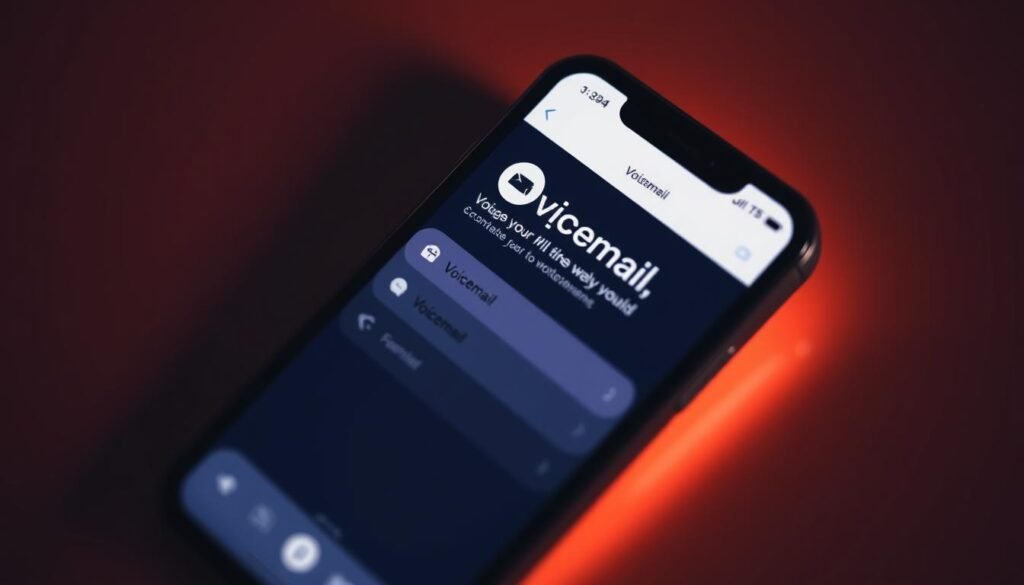
I want my messages to sound professional and secure, and I can do that without fuss. First, I check whether I’ll be working in the Phone app or in Settings. The Phone app can use a Unified layout or Classic layout, which affects whether I tap Calls > Edit > Edit Voicemail Greeting or Voicemail > Greeting.
I also update my password in Settings > Apps > Phone > Change Voicemail Password, and I pick an alert tone in Settings > Sounds & Haptics > New Voicemail. I’ll mention recording tips, carriers that allow live recording, and using Google Voice for multiple greetings.
In short, I’ll walk through each step so my greeting, security, and alert sound match the content I want callers to hear.
Key Takeaways
- I’ll locate the correct spot: Phone app for greeting, Settings for password, and Sounds & Haptics for alerts.
- The Phone app offers Unified and Classic layouts; that changes the menu path for editing a greeting.
- I can choose the default greeting or record a custom one right on my phone when my carrier allows it.
- Update the voicemail password in Settings to keep messages private.
- I can pick a distinct New Voicemail tone or browse the Tone Store for something unique.
What I Check Before Updating My Voicemail Greeting
Before I record, I run a quick checklist so I don’t waste minutes fixing simple issues later.
Carrier support and software: I confirm my carrier allows a custom greeting and that my region supports recording. Some plans block that option, so this saves time.
iOS and Live features: I check my iOS version because Live Voicemail needs iOS 17. If I have that, I can toggle Live Voicemail in Settings > Apps > Phone.
- I open Settings to verify cellular service and that voicemail is set up on my voicemail iphone.
- I note the Phone app layout — Unified or Classic — since the app menu changes where greeting controls hide.
- I pick a quiet time so background noise won’t mar the recording.
Final quick steps: I test my microphone with a voice memo, jot a short script, and decide whether the default greeting stays or I record a short custom message. I always play back the saved greeting once, and I check Focus modes so new alerts aren’t missed.
How to Change Voicemail on iPhone: Update My Greeting in the Phone App
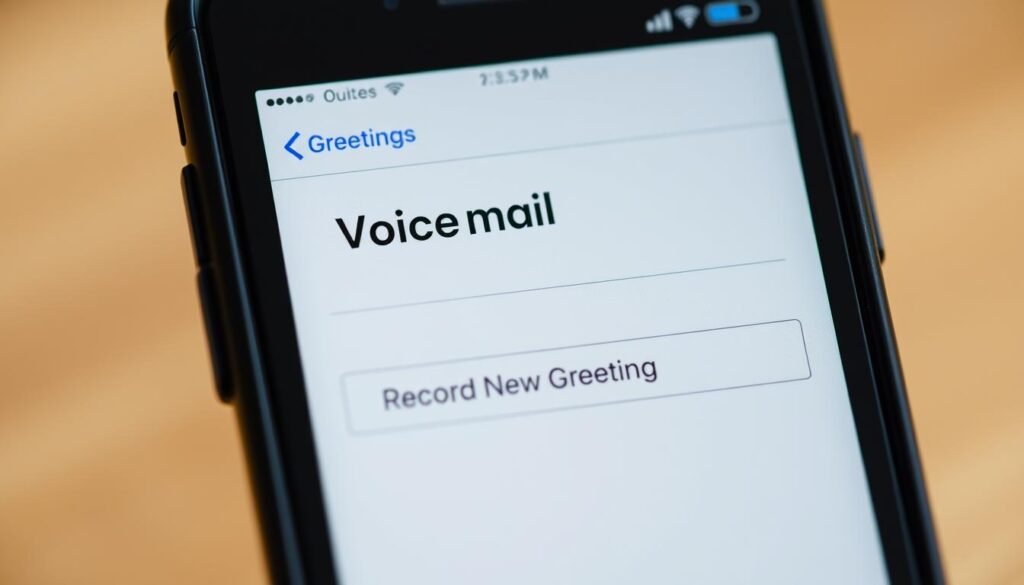
A clear greeting makes a better first impression, so I start by finding the right menu in the Phone app.
Unified vs. Classic layout. If I see a Calls tab, I’m on the Unified layout and I tap Calls > Edit > Edit Voicemail Greeting. If the app shows classic tabs, I tap Voicemail, then Greeting. That gets me to the same controls quickly.
Switching between default and custom
I decide whether to keep the default greeting or pick a custom one. The default is simple and consistent. A custom greeting lets me sound more personal and helpful.
Tap Custom and tap Record
I tap Custom, then tap Record to capture the new greeting. I pick a quiet spot and use a short script: my name, why I missed the call, and when I’ll reply. I speak slowly and smile so my tone stays warm.
Recording tips and Google Voice note
Keep takes brief and retry if needed. Some carriers or regions don’t support recording in the Phone app; if the option isn’t visible, that’s likely a carrier limit.
- Play back the voicemail greeting to check volume and clarity.
- If I use Google Voice, I open the app, go Menu > Settings > Voicemail greeting, then Record a greeting. The app lets me record up to 3 minutes and save multiple greetings.
- Set an active greeting in Google Voice by tapping More > Set as active.
Changing My Voicemail Password in Settings
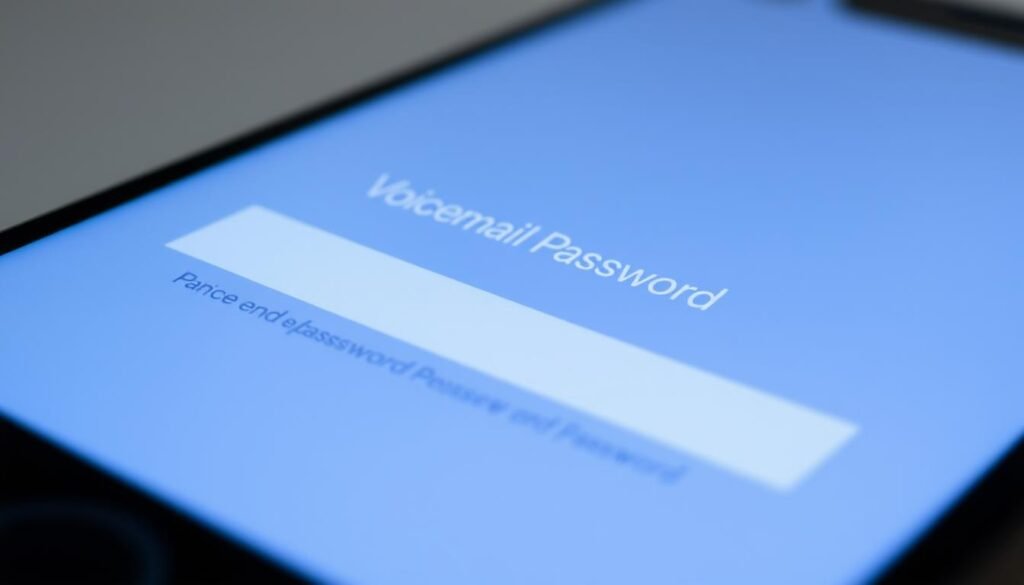
I lock down my voicemail access by updating the PIN from Settings so only I can hear messages. This step takes little time and stops casual snooping.
Where I go: Settings > Apps > Phone > Change Voicemail Password
Quick path: I open Settings, tap Apps, choose Phone, then select Change Voicemail Password and enter a new code.
Strong PIN rules to avoid errors
Pick a secure code: Voicemail PINs must be 4–8 digits. Avoid long repeats like 11111111 and simple sequences such as 123456.
- I avoid using the last four digits of my mobile number or more than two sequential numbers in a row.
- I never reuse obvious patterns or birthday dates; that reduces the chance of a general voicemail error.
- I store the code securely in my password manager so I save time later if I must update it again.
If I forget: carrier reset tip for a new PIN
If I forget the code, I dial #793# from my phone. The carrier sends an SMS with a temporary eight‑digit PIN so I can sign in and set a new password immediately.
Customizing Voicemail Alerts and Trying Live Voicemail (iOS 17)
I tweak alert tones and live transcription so I never miss a critical message during a busy day. These small settings let me spot urgency without unlocking my device.
Setting a new voicemail alert sound in Sounds & Haptics
I open Settings > Sounds & Haptics > New Voicemail and pick a tone that cuts through noise. If I want something unique, I tap Tone Store and buy a distinct sound.
I then adjust volume and haptics and test once so alerts hit the right level during a commute or meeting.
Turning Live Voicemail on or off in Settings
On iOS 17 I visit Settings > Apps > Phone > Live Voicemail and toggle it on or off. This gives me control over whether transcripts appear while a caller records a message.
What Live Voicemail does while someone leaves a message
Live transcripts show text in real time so I can scan for names, numbers, and context and decide if I should answer. If it looks urgent, I pick up mid‑message and continue the call.
I keep in mind availability varies by carrier and region, so I test the feature and revisit these settings when my routine or voicemail greeting or default alert needs an update.
Conclusion
I finish by making sure callers hear a clear voicemail greeting and that my inbox stays secure.
I recap the essentials: open the Phone app layout you have, choose Default or Custom, then tap voicemail and tap record to capture a short, friendly script. Keep background noise low and use a warm tone.
I also update my password in Settings with a 4–8 digit PIN that avoids sequences or repeats, and I pick a distinct alert under Sounds & Haptics so I never miss important messages.
For step‑by‑step guidance or to learn more about saved transcripts and syncing, see the official guide on how to edit a voicemail greeting. Test playback once and revisit the greeting when your content or hours change.