
When you want to close programs on your iPhone, it’s essential to know the right steps. Accessing the multitasking view might seem straightforward, but understanding how to effectively manage your apps can enhance your device’s performance. You’ll discover that there are a few methods to accomplish this, each with its own advantages. Curious about how to maximize efficiency and battery life? Let’s explore the options available to you.
Key Takeaways
- Open the multitasking view by double-clicking the Home button or swiping up from the bottom for models without a Home button.
- Navigate through the app cards by swiping left or right to find the app you want to close.
- Close an app by swiping up on its card; you can do this with multiple fingers to close several apps at once.
- Use AssistiveTouch by enabling it in Settings, then access the App Switcher to close apps without swiping.
- Regularly manage your background apps to optimize battery life and performance by closing those not in use.
Understanding the Multitasking View
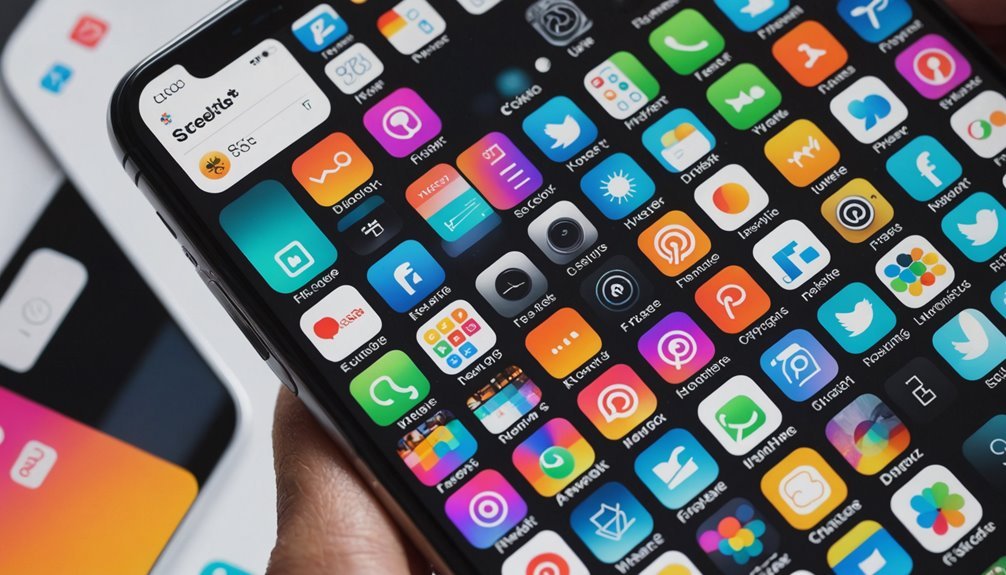
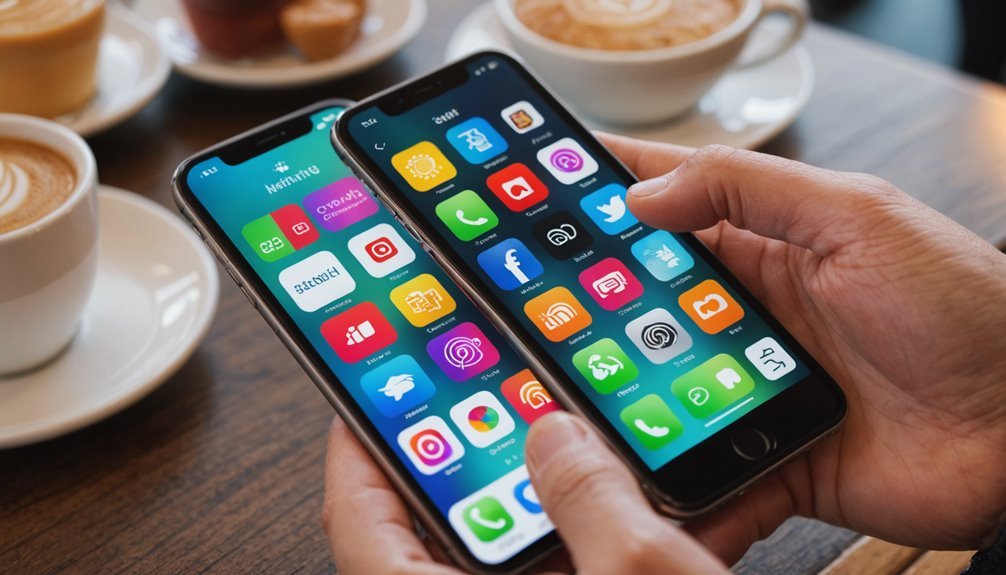
Have you ever wondered how to easily navigate through your open apps on an iPhone? Understanding the multitasking view is key. When you double-click the Home button or swipe up from the bottom (if you have no Home button), you open a visual layout of all the apps you’ve recently used. This aspect of iOS lets you see your active programs at a glance. You’ll notice that each app appears as a card, stacked for easy access.
You can swipe left or right to find the app you need. Tapping any app card takes you right back to where you left off. Plus, this view helps you forget about apps you no longer need. By swiping up on an app card, you can close it, freeing up memory and optimizing your device’s performance. Understanding this multitasking view makes managing your iPhone’s apps a breeze.
How to Access the App Switcher
To access the App Switcher on your iPhone, simply double-click the Home button or swipe up from the bottom of the screen if you’re using a model without a Home button. This feature lets you quickly see all the apps currently open on your device, making multitasking a breeze.
Once you activate the App Switcher, you’ll see a carousel of app cards displaying the apps you’ve recently used. You can scroll through them horizontally by swiping left or right. This easy navigation helps you find the app you want without searching through your home screen.
If you want to quickly switch between apps, just tap on the one you need, and it’ll open instantly. Familiarizing yourself with the App Switcher makes it easier to manage your tasks and enhance your overall iPhone experience. So go ahead, give it a try, and enjoy the convenience it brings!
Closing Apps: The Swipe Method
Swiping up on an app card in the App Switcher lets you close apps quickly and efficiently. Once you’ve accessed the App Switcher, you’ll see all the apps currently running in a carousel format. To close an app, simply find the card of the app you want to quit. Use your finger to swipe up on the card, and it’ll disappear from your screen. It’s a straightforward action that takes just a moment.
If you’re handling multiple apps, you can swipe through the cards to locate the one you wish to close. If you want to close several apps at once, you can use multiple fingers to swipe up on multiple cards simultaneously. This method not only helps in saving battery life but also frees up system resources, ensuring your iPhone runs smoothly. By mastering this swipe method, you’ll keep your device organized and efficient.
Utilizing AssistiveTouch for Closing Apps
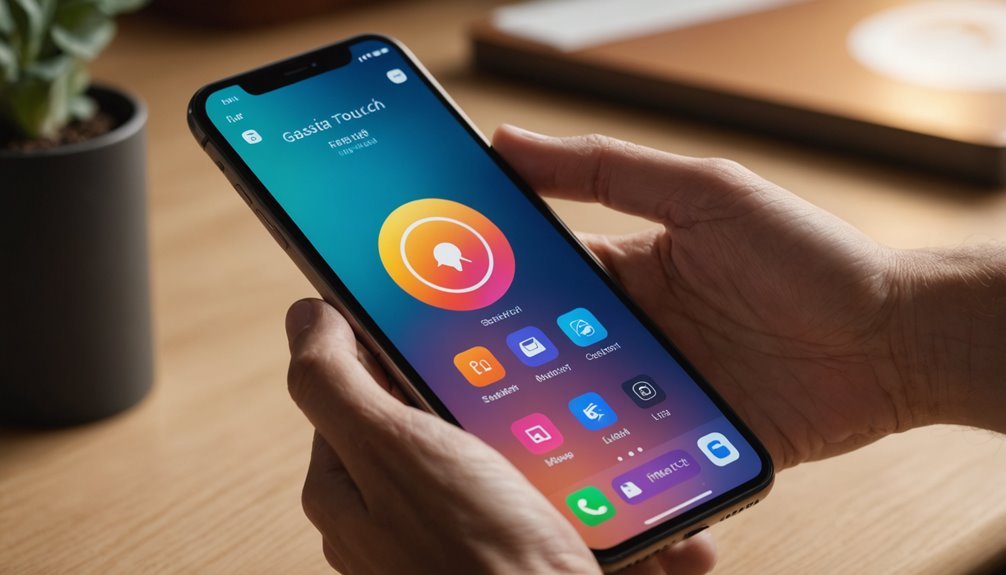
For users who prefer an alternative to the swipe method, utilizing AssistiveTouch can simplify closing apps on your iPhone. This feature gives you added convenience, especially if you have difficulty using the touch screen or prefer a more accessible option. Here’s how to use AssistiveTouch for closing apps:
- Open the Settings app.
- Navigate to Accessibility > Touch > AssistiveTouch and toggle it on.
- A floating button will appear on your screen; tap it.
- From the AssistiveTouch menu, select “Device,” then press “More,” and choose “App Switcher.”
Once the App Switcher is visible, you can see all your open apps. Simply tap and hold the app you want to close until the red minus icon appears, then tap it to close the app. This method keeps things straightforward without needing to swipe!
Tips for Managing Background Apps Efficiently
While many users may not think much about managing background apps, doing so can considerably enhance your iPhone’s performance and battery life. Start by regularly checking which apps are running in the background. You can do this by double-tapping the Home button or swiping up from the bottom of the screen on newer models. If you notice apps you haven’t used recently, swipe them up to close them.
However, remember that not all background apps need to be closed. Some apps refresh content automatically, which can be essential for messaging or news updates. To optimize battery life, consider limiting background app refresh in your settings. Go to Settings > General > Background App Refresh and select “Wi-Fi” or “Off” for unnecessary apps. Finally, keep your iPhone updated; software updates can improve app performance and efficiency, ensuring a smoother experience overall.
Frequently Asked Questions
Do Closed Apps Continue Using Battery Life?
Think of your iPhone as a busy restaurant; closed apps are like diners who’ve left, but their leftover plates still sit on the table. While closed apps usually don’t drain your battery considerably, some may still run processes in the background. So, they can use a bit of power. If you want to save every last drop of battery, it’s smart to clear out apps you aren’t using.
Can I Reopen Closed Apps Easily?
Yes, you can reopen closed apps easily on your iPhone. Just swipe up from the bottom of the screen to access the App Switcher, then tap your desired app if it’s still in the recent apps list. If you’ve completely closed it, you can find it on the Home Screen or in the App Library. Just tap the app icon, and you’re back in action, ready to continue where you left off!
Are There Any Settings to Disable Background App Refresh?
Disabling background app renewal is as simple as flipping a switch. You can turn it off by going to Settings, then General, and tapping on Background App Renewal. Here, you can select “Off or choose specific apps to stop renewing in the background. This saves battery life and limits data usage, giving you more control over your device’s performance. Just remember, some apps may not work as smoothly without this feature enabled.
How Do I Force Close Unresponsive Apps?
To force close unresponsive apps, swipe up from the bottom of your screen (or double-click the Home button if you have one) to open the app switcher. Once you see the app cards, swipe left or right to find the unresponsive app. Then, swipe the app card up off the screen. This action closes it, freeing up resources and returning your device to normal. It’s quick and effective—try it whenever a glitch occurs!
Does Closing Apps Improve Iphone Performance?
Closing apps can be like cleaning out a cluttered closet; it can make things more efficient. However, on an iPhone, it doesn’t greatly improve performance. iOS is designed to manage background apps without draining resources. If an app’s misbehaving, closing it may help, but regularly closing apps won’t speed up your device. Focus on updating your iOS and managing storage for better performance instead of constantly shutting down apps.