
Surprising fact: I learned that a single app can leak data into places like CarPlay and Siri suggestions unless I require authentication first.
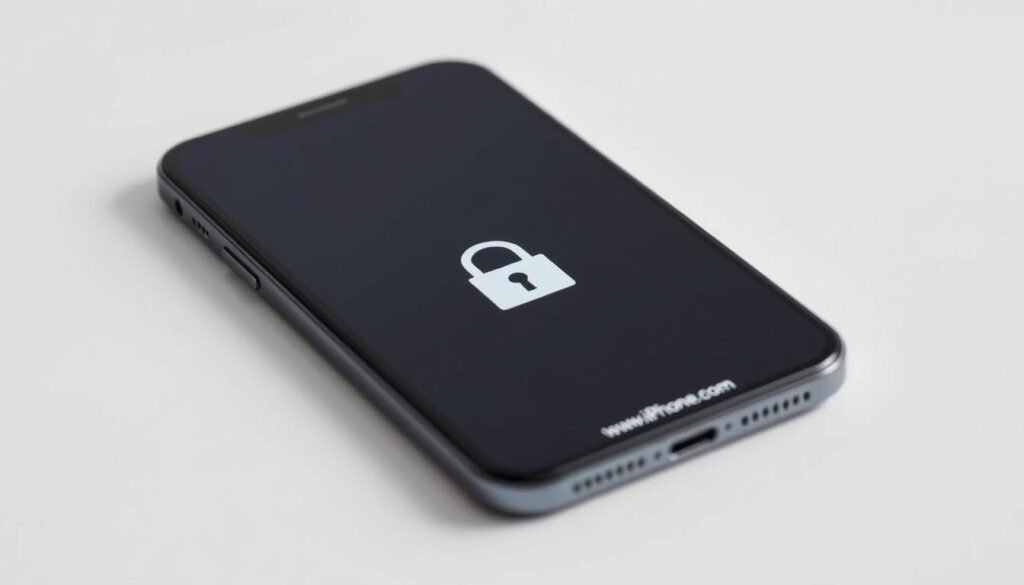
I tried the built-in feature and found it gave a quick layer of security without changing my daily use. I long-pressed an app, picked the quick action, and set authentication so opening that app now needs Face ID, Touch ID, or a passcode.
This keeps an app’s content out of notification previews, system search, call history, and CarPlay. It felt like a smart, low-friction way for me to protect messages, finance, and shopping apps when someone else holds my device.
I did hit a limit: some system apps like Camera and Settings can’t be locked. Also, the locked status stays only on my phone and won’t sync via iCloud, so I set locks separately on other devices.
I’ll show a few quick steps and extra tips next, including hiding apps and using Guided Access for single-app control.
Key Takeaways
- Requiring Face ID, Touch ID, or a passcode adds simple, effective protection.
- Locked apps won’t leak data into search, Siri, CarPlay, or notifications.
- Some built-in apps can’t be secured, so plan what you want lock accordingly.
- Lock settings remain local and don’t sync across devices.
- The process is fast and nonintrusive for everyday use.
Why I lock apps on iPhone to protect my data
I wanted a simple way to keep personal content hidden when others used my device. Protecting certain apps gave me peace of mind during quick hand-offs and visits with friends.
What it hides: locking an app prevents notification previews, search results, Siri suggestions, CarPlay entries, and call-history snippets from showing sensitive content. That small barrier felt like real privacy protection beyond the app itself.
Family notes: children under 13 in Family Sharing can’t use this feature. Teens aged 13–17 can, but parents still see downloads and usage and can limit access through Screen Time.
I liked that the locked or hidden status stays on my device only. If I don’t want the same behavior across another phone or iPad, this local approach is the right way for me.
- I often hand my phone to others, so a quick long press and authentication with Face, Touch, or a passcode keeps curious tapping from becoming a problem.
- Some usage traces still appear in system summaries, which I accept as part of transparency and wellbeing features.
For official details and steps, I checked Apple’s guide for the feature at Apple Support.
How to lock apps on iPhone with Face ID, Touch ID, or a passcode
I press and hold an icon, tap Options in the quick actions menu, then choose the Require Face ID, Require Touch ID, or Require Passcode control. That single action turns on protection for that app right from my Home Screen.
Step-by-step: Require Face ID/Touch ID/Passcode from the quick actions menu
The steps are short and repeatable. From Home Screen I long-press the app, pick Options, and flip on the require face or touch or passcode setting. I confirm once and the change takes effect immediately.
Which apps can and can’t be locked
Most third-party apps and many Apple apps support the feature. A few built-in apps can’t be protected, including Calculator, Camera, Clock, Contacts, Find My, Maps, Shortcuts, and Settings.
Opening a locked app: what I see and how authentication works
When I tap a protected app, an authentication sheet slides up. Face ID tries automatically. If it doesn’t recognize me, I can switch to touch or enter my passcode. It takes a second and rarely slows my routine.
- I remove protection by long-pressing the icon and choosing Don’t Require Face ID/Touch ID/Passcode, then authenticating once.
- I choose which apps I want lock based on whether I’d mind someone glimpsing their content briefly.
| Action | What I see | Typical result |
|---|---|---|
| Long-press app → Options | Require Face / Touch / Passcode toggle | App is protected when opened |
| Tap protected app | Authentication sheet (Face ID first) | App opens after verification |
| Long-press app → Don’t Require | Authentication prompt to confirm | Protection removed for that app |
How I hide apps on iPhone for extra privacy
I wanted the icon gone from my Home Screen and a second authentication step before anyone could open a sensitive app. Hiding an app removes the icon and pauses notifications while adding that extra verification layer.
Hide and Require Face ID: the flow and confirmation prompts
From the Home Screen I long-press the app, tap Options, then enable Require Face ID, Require Touch ID, or Require Passcode. Next I choose Hide and Require Face ID/Touch ID/Passcode, authenticate, and confirm Hide App.
The icon vanishes from my screen and the app moves to the Hidden folder at the bottom of the App Library. I get a clear confirmation that the app name is hidden and notifications are paused.
Finding hidden apps in the App Library’s Hidden folder
I open App Library, scroll to the bottom, and tap the Hidden folder (eye-with-a-strike icon). I authenticate to view the list and then tap any app to open it, authenticating again if prompted.
- Only third-party apps can be hidden; built-in apps and certain defaults can’t be hidden.
- Hidden app names may still appear in Screen Time, Battery usage, and App Store purchase history.
- To unhide, long-press inside Hidden, choose Don’t Require Face ID/Touch ID/Passcode, authenticate, and the app moves near the top of App Library.
| Action | Confirmation | Result |
|---|---|---|
| Long-press → Options | Hide and Require prompt | Icon removed from Home Screen |
| Open App Library → Hidden | Authenticate | App visible and launchable |
| Long-press in Hidden → Don’t Require | Authenticate | App returns to App Library top |
Use Guided Access to lock your iPhone to a single app
Guided Access made it simple for me to hand my phone over while keeping everything else out of reach.
I set Guided Access in Settings under Accessibility: Settings > Accessibility > Guided Access. There I set a dedicated passcode and allowed Face ID or Touch ID so ending sessions is fast on my current models.
When I start a session I open the target app, trigger Guided Access, and draw circles to disable touch areas. The Options panel lets me block the Side Button, Volume Buttons, Motion, Software Keyboard, and Touch. I can also set a Time Limit and tweak Display Auto-Lock so the screen behaves as I want.
Time Limits can play a sound and speak remaining time. That helped when I handed the device to a child for a short video. I also turned on the biometric ending option so a double-click plus Face or Touch can exit fast.
To end Guided Access I triple-click Home or Side and enter the Guided Access passcode or device passcode. With biometrics enabled, a double-click and Face ID or Touch ID works as an alternative. Important: Crash Detection and Emergency Services aren’t available during Guided Access, so I exit first before relying on those protections.
Manage locks: unlock, unhide, and add apps back to my Home Screen
Returning an app to normal visibility took just a few taps and an authentication check.
Remove a lock: Don’t Require Face ID/Touch ID/Passcode
I long-press the icon, pick Don’t Require Face ID/Touch ID/Passcode from the same menu, then confirm with my passcode or biometric.
The change is instant. The next time I open the app it launches without asking for my face, touch, or passcode.
Unhide apps and add them to a Home Screen page
To unhide I open App Library, go into the Hidden folder, authenticate, long-press the app, and choose Don’t Require Face ID/Touch ID/Passcode.
The app moves near the top of App Library. From there I long-press it again and tap Add to Home Screen. That places the icon on the page I want.
- I removed a protection layer quickly and without affecting purchases or app store history.
- These steps work whether the application lived inside a folder or on a page.
- The flow kept my Home Screen tidy and let me restore access when I no longer needed extra privacy.
Privacy, Screen Time, and visibility: what others can still see
I realized that hiding an app doesn’t hide every trace it leaves in system reports. That trade-off matters when I manage privacy and family sharing.
What remains visible: names of hidden items can still show up in screen time reports, Battery Usage by App, and in App Store purchase history. I checked those lists and accepted that they help explain device usage while not exposing content.
iCloud and device sync
The lock and hidden status stays local to my device. If I carry more than one phone, I set protections on each model separately.
Family Sharing and age rules
Children under 13 can’t use these features; teens aged 13–17 can. Parents still see downloads and use Screen Time to set limits and monitor activity.
- I used Screen Time as a companion, not a replacement, for direct entry controls.
- A face or a passcode is still required for protected entry, even when summary data appears elsewhere.
- This balance preserved everyday security while keeping transparency for families and others who share the device.
Options and limits across models, features, and settings
I checked behavior across several models so I wouldn’t be surprised by differences in menus or prompts.
What I found: certain built-in apps can’t be protected. Calculator, Camera, Clock, Contacts, Find My, Maps, Shortcuts, and Settings remain open by design.
Why it matters: system integrity and quick access are likely reasons Apple excludes those names from hiding or protection.
Practical options and workarounds
I adapted my layout and settings to match limits. I moved system items to a later page or tucked them into folders so they aren’t front and center.
- I use protection for third‑party apps and many Apple titles that support the feature.
- Hidden items go to the Hidden folder in App Library and their names can still appear in Screen Time, Battery Usage, and App Store history.
- Lock and hidden status stays local; the process doesn’t sync via iCloud, so I repeat steps on each device if needed.
| Action | Affected items | Result |
|---|---|---|
| Attempt hide | Built‑in apps | Not allowed |
| Hide third‑party | Supported apps | Moves to Hidden folder |
| Protect app | Supported titles | Requires authentication at open |
Conclusion
I settled on a simple routine that guarded my private apps without slowing daily use.
I use Face ID, Touch ID, or a passcode for every protected title. That keeps content out of search, Siri suggestions, notifications, CarPlay, and call history.
Hidden items live in the Hidden folder inside the App Library. I remember built‑in titles can’t always be protected. Lock and hidden status stays local and doesn’t sync via iCloud.
Guided Access is my go‑to for single‑app sessions with optional time limits and disabled controls. I avoid using it in emergencies since some services aren’t available during a session.
This feature felt fast to set, fit my daily settings, and left Screen Time and store records intact for accountability. I can unlock, unhide, or add an app back with just a few taps when my needs change.