
Surprising fact: nearly 40% of minor phone issues clear after a simple restart, so a few quick presses can save a trip to support.
I’ll walk you through clear, friendly steps that let you restart iphone reliably, even when the screen is acting up. I explain which buttons to press for newer models and which ones apply if your device has a Home button.
A basic restart usually refreshes the system without erasing data. You’ll see the Apple logo as the device powers back on — that’s normal and may take a few moments. I’ll also show a force restart sequence when buttons won’t respond.
Alongside hardware methods, I’ll cover a software option in Settings and a Shortcuts trick for a one-tap Shut Down on your Home screen. Follow my steps and you’ll have your phone back to normal in minutes.
Key Takeaways
- One restart often fixes minor glitches without data loss.
- I give exact button combos for newer models and older phones with a Home button.
- Force restart sequences differ by model; I’ll show each one clearly.
- You can also shut down from Settings or add a Shut Down shortcut.
- Seeing the Apple logo during startup is expected; wait a short while for a full restart.
Before you begin: Restart versus force restart, and when to use each
I’ll help you pick the right restart path based on what your device is doing. If the screen responds, a normal restart is safest — it keeps your data and usually clears minor glitches. For most newer models, press and hold the side button plus either volume button and drag the slider. Then hold the side button to power back on until you see the Apple logo.
When taps don’t register or the power slider never appears, use a force restart. That is a hardware-level sequence that does not erase files. On iPhone 8 and newer, quickly press Volume Up, then Volume Down, then press and hold the side button until the logo appears. Older models use different combos: sleep/wake with volume down for iPhone 7, or Home plus sleep/wake for iPhone 6s and earlier.
- Regular restart preserves data and is my first choice when the screen works.
- Force restart is for frozen screens or unresponsive buttons; you’ll still see the Apple logo.
- Remember: resetting wipes your device — restarting does not.
If you want a step-by-step chart later, I map each method by iphone model and symptoms. For additional detail on sequences and an illustrated guide, see my linked reset guide: force restart instructions.
How to reboot iPhone in 3 easy steps
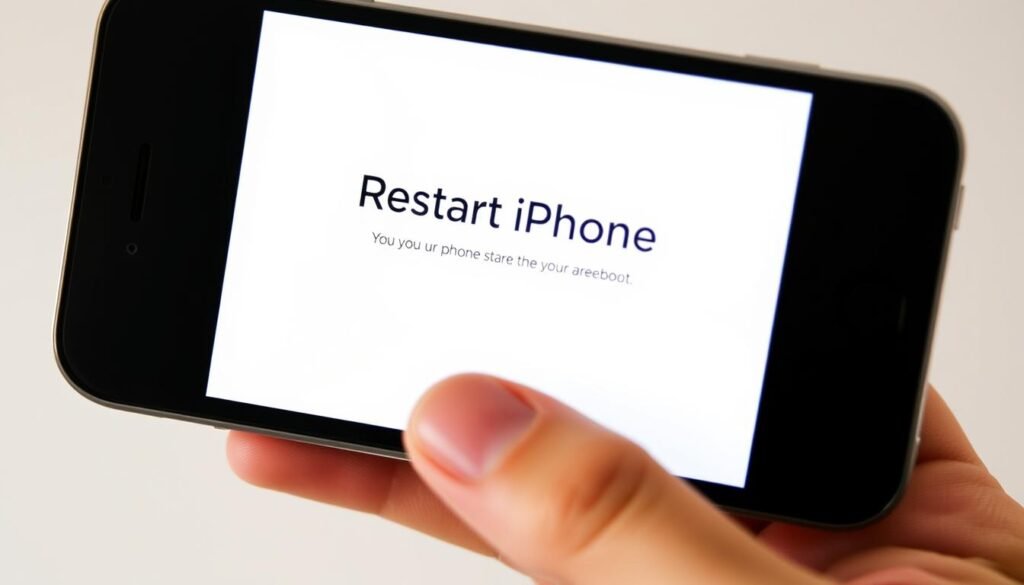
A quick, methodical restart often clears sluggish behavior — here’s the three-step routine I use.
For iPhone X and newer
Step 1: Press and hold the side button with either volume button until the power slider appears.
Step 2: Drag the slider and wait for the screen to go dark. Pause a few seconds so the device fully powers off.
Wait, then power back on
Step 3: Press and hold the side button until you see the Apple logo. That logo confirms a successful boot.
I recommend a short pause between shutdown and start so the system clears minor caches.
For iPhone 8 and older with a Home button
Use the top or side sleep/wake button to show the slider, then use that same sleep/wake control to turn the phone back on until you see the logo.
“A standard restart does not erase data — it simply refreshes system memory.”
- I use this method first for sluggish apps or slow performance.
- If the screen won’t respond at all, skip ahead and try the force restart sequence for your model.
Force restart by iPhone model when the screen won’t respond
If the screen is frozen, a model-specific force restart will usually wake the device without data loss.
Follow the exact sequence for your model. Timing matters for newer phones: quick taps, then a steady hold.
iPhone 8 through iPhone 17 (and SE 2nd/3rd gen, Pro, Pro Max)
Press and quickly release Volume Up, then press and quickly release Volume Down.
Immediately press and hold the side button until the Apple logo appears. Do the steps fast and in order.
iPhone 7 and 7 Plus
Press and hold the sleep/wake button and volume down together until the logo shows.
iPhone 6s, SE (1st gen) and earlier
Press and hold Home and the sleep/wake button together until you see the Apple logo.
“You’ll know it worked when the Apple logo appears; then release the buttons.”
| Model Group | Button Sequence | What to watch for |
|---|---|---|
| iPhone 8–17, SE 2/3, Pro/Pro Max | Vol Up (tap) → Vol Down (tap) → Hold side | Apple logo appears; release |
| iPhone 7 / 7 Plus | Hold sleep/wake + volume down | Logo appears; unique to this model |
| iPhone 6s, SE (1st gen) & earlier | Hold Home + sleep/wake | Classic method; release at logo |
- I map each force restart by model so you can act fast when the power slider won’t appear.
- These steps are safe: the force method reboots the device and does not erase content.
Ways to restart without pressing physical buttons
If your power key is stiff or you prefer software tools, there are simple ways that avoid pressing physical buttons. I’ll cover three practical routes you can use across models with or without a home button.
Use Settings: General > Shut Down
Open Settings, tap General, then choose Shut Down. Slide the power control and wait for the screen to go dark.
When you’re ready, press and hold the side button until you see the Apple logo and the device boots. This method works even if the wake button is awkward to press.
Ask Siri for a restart
You can set up Siri to help with power actions. A voice command offers a hands-free option when the button feels finicky or you’re nearby but busy.
Add a Shut Down shortcut to the Home Screen
In Shortcuts, add the built-in Shut Down action and share it to your Home. Tapping that icon opens a quick confirmation and then powers off the phone.
Tip: These software routes won’t erase data; they only cycle power. If the screen is frozen, use the force restart iphone steps instead.
| Method | When it helps | What you do after |
|---|---|---|
| Settings > Shut Down | Button hard to press or wearing out | Hold side button to turn phone back on; watch for logo |
| Siri voice command | Hands-free or unable to press buttons | Confirm shutdown by voice; hold side button to power on |
| Shortcuts – Shut Down on Home | Quick access, broken button, busy cases | Tap icon, confirm, then hold side button to restart |
If you need further troubleshooting for a non-working power key, see my guide on restart without the power button.
Conclusion
Here’s a short summary that puts the most useful restart steps within easy reach. ,
I recommend the standard power slider using the side or top button for most issues. A model-specific force restart works when the screen is unresponsive — Volume Up, Volume Down, then hold side for iPhone 8 and newer; sleep/wake plus volume down for iPhone 7; Home plus sleep/wake for older phones.
Software ways like Settings > General > Shut Down, Siri, or a Shortcuts Shut Down icon avoid hardware presses. None of these steps erase data, and the Apple logo shows success.
Save or bookmark these short steps, practice once while the phone is active, and you’ll act fast when trouble appears. If issues persist after a few attempts, check iOS updates, free storage, or contact Apple Support.